Setting Up Your RespectX Account
Watch the video or follow the steps below to secure your account and get started
Why We Require Enhanced Security
RespectX handles highly sensitive information. To protect your data and maintain confidentiality, all accounts require:
- A strong password (14+ characters with mixed case, numbers, and symbols)
- Multi-Factor Authentication (MFA) to prevent unauthorised access
Recommended: Complete setup on a desktop or laptop for the best experience
Required: You'll need your smartphone to set up MFA
1
Download an Authenticator App
If your organisation provides an authenticator app, use that. Otherwise, download Google Authenticator (free) from your mobile app store:

Android:Google Authenticator for Android
iPhone/iPad:Google Authenticator for iPhone/iPad
2
Check Your Email
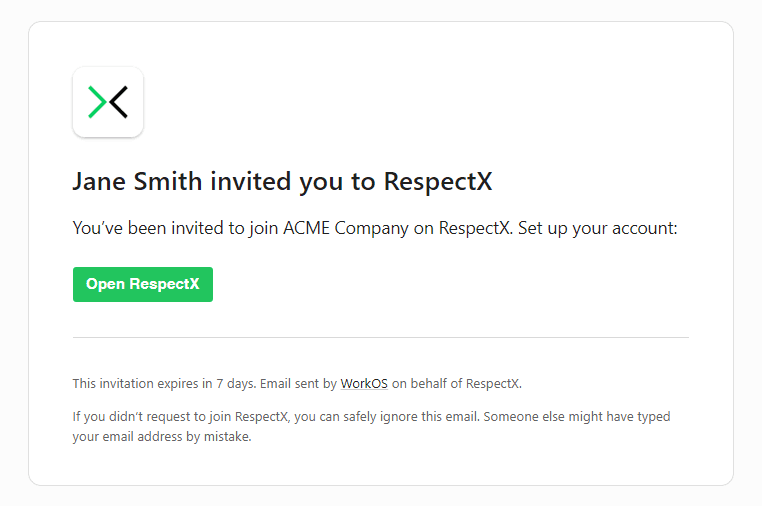
Look for the invite email from RespectX and click the "Open RespectX" button.
Time Limit: The invite link expires after 7 days. If expired, contact your organisation admin for a new invite.
3
Verify Your Details
- 1.Confirm your email address is correct and click "Continue"
- 2.Enter your first and last name (this is how other case managers will see you)
- 3.Click "Continue" to proceed
4
Create a Strong Password
Your password must meet these requirements:
- Minimum 14 characters
- At least 1 lowercase letter (a-z)
- At least 1 uppercase letter (A-Z)
- At least 1 number (0-9)
- At least 1 special character (!@#$%^&*)
5
Verify Your Email
Check your email for a 6-digit verification code, then enter it on the RespectX website. The form will submit automatically once you enter all 6 digits.
Time Limit: Code expires after 10 minutes. If expired, restart from Step 2.
6
Set Up Multi-Factor Authentication
Note: The following instructions are for Google Authenticator and Microsoft Authenticator. If your organisation provides an alternative MFA app, follow their instructions instead for steps 1-3.
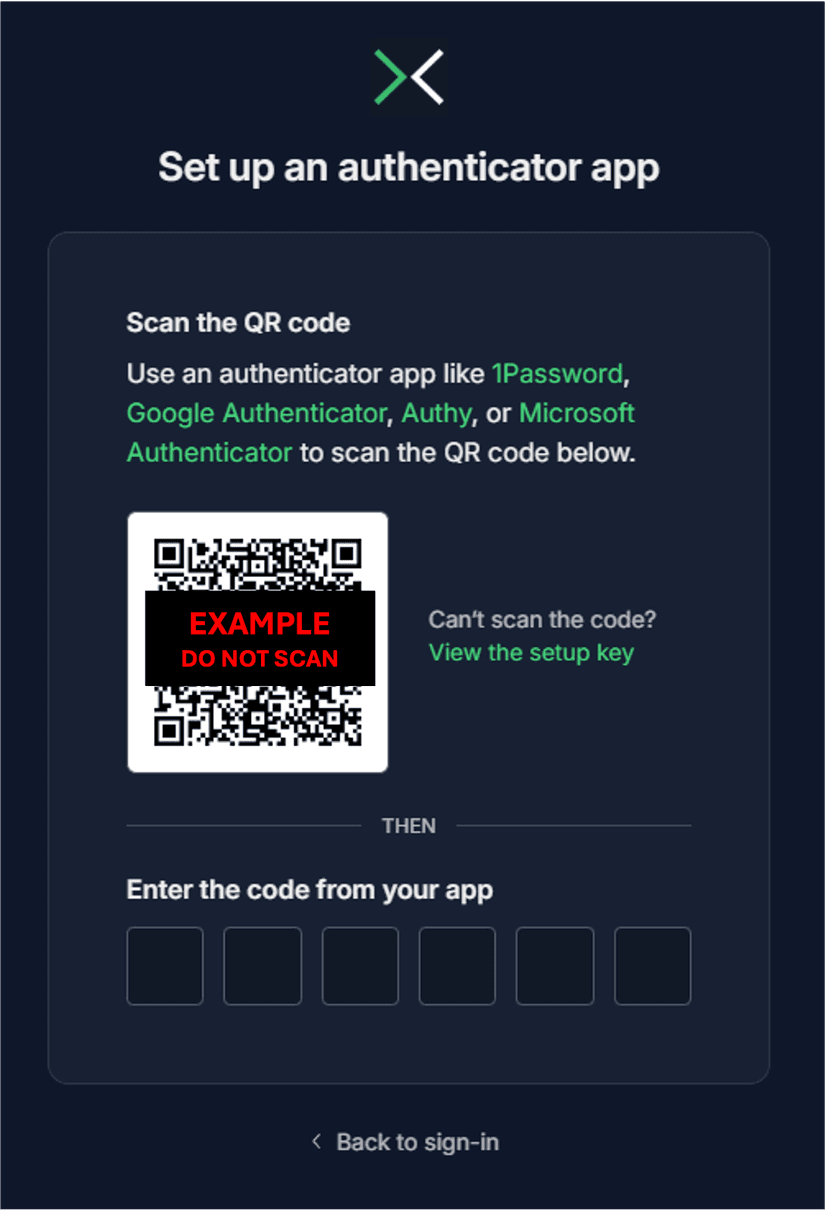
Time Limit: The QR code expires after 10 minutes. If expired, click on "Back to sign-in" and try again.
Scan the QR Code:
- 1.Open the authenticator app on your smartphone
- 2.Tap the + icon (Google Authenticator: bottom right, Microsoft Authenticator: top right)
- 3.If you're using Microsoft Authenticator, select "Work or school account"
- 4.Select "Scan a QR code"
- 5.Point your phone camera at the QR code displayed on the RespectX website
- 6.A 6-digit code will appear in your app (refreshes every 30 seconds)
- 7.Enter this code on the RespectX website to complete setup
Need Help?
Common MFA Setup Issues
I scanned the wrong QR code
Make sure you're scanning the QR code shown on the RespectX website after setting up your password — NOT the example images in these instructions. If you scanned the wrong code, you will need to delete the account from your authenticator app and start again.
My six digit code never works
When setting up MFA, the QR code expires after 10 minutes. If you scan the QR code once it has expired, the code will never work. Click on "Back to sign-in" and try again to refresh the QR code.
Alternatively, if you have several accounts in your authenticator app, double-check you're selecting the RespectX account, not your organisation's other accounts.
Still stuck? We're here to help!
support@respectx.com.au